Spudlet
A little how-to
Give your Spud a little home on your screen.
Add a Spudlet widget to your iPhone Home Screen or Lock Screen. Here’s where to find each layout, what to do before you start, and a few gentle fixes if Spud hasn’t appeared yet.
Before the little move-in.
Your iPhone needs Spudlet installed. Open it once and complete your setup. Pair with your person to see your shared moments. If you’re choosing a layout, our widget overview explains the three options.
On your Home Screen.
Open Spudlet first
Install and open Spudlet, finish your name setup, and connect with your person through an invitation. Open the app once after an update so its latest widget data is ready.
Make a little space
On your iPhone Home Screen, touch and hold an empty area until the apps jiggle. Tap Edit, then Add Widget. On older iOS versions, look for the + button instead.
Find Spudlet
Search for Spudlet in the widget gallery. Swipe through the available layouts to choose the one you want.
Choose your little view
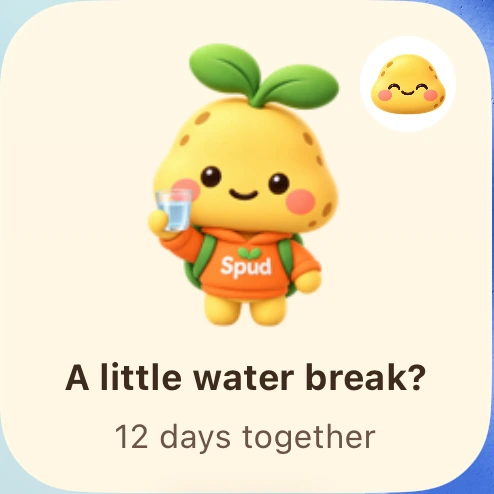
Spud comes in small and medium Home Screen sizes. Our little week and Little things we sent each use a medium layout. Tap Add Widget, position it, then tap Done.
On your Lock Screen.
Open Lock Screen customisation
Unlock your iPhone, then touch and hold the Lock Screen. Choose the Lock Screen you want to change, tap Customise, and choose Lock Screen.
Find the widget area
Tap the widget area below the clock. Find Spudlet in the list and choose a supported circular or rectangular Spud widget. Make room by removing another widget if needed.
Keep your little Spud
Tap or drag the widget into the available space, close the widget picker, and tap Done. The two calendar-style widgets belong on the Home Screen, rather than the Lock Screen.
Spud hasn’t appeared yet?
Spudlet isn’t in the widget gallery.
I can’t find Our little week on the Lock Screen.
The widget shows an older mood or message.
The widget is waiting for my person.
The card on my Lock Screen disappeared.
Can I have a Live Activity without Dynamic Island?
Written by Spudlet for its current widget layouts. iOS button labels can vary by version. General setup reference: Apple’s guide to adding and editing widgets. Still stuck? Say hello to support.
A few more little things.
For your Home Screen
Couple widgets for iPhone
Your person’s mood, your little week, and the things you sent. Meet the three Spudlet Home Screen widgets.
Words to borrow
Thinking-of-you messages
24 small, original messages for your partner or friend. Find one that sounds like you, copy it, and make it your own.
Free little downloads
Free Spud phone wallpapers
Six soft backgrounds, six little Spud moments. Download a phone wallpaper or take the whole collection home.
Your person. Your potato. Your little world.
Spudlet is a little space for two people to share moods, send care and keep each other close.